The Canvas
The canvas panel sits to the right of the chat. As you ask questions and take actions, a visual map of your people and data builds up automatically.
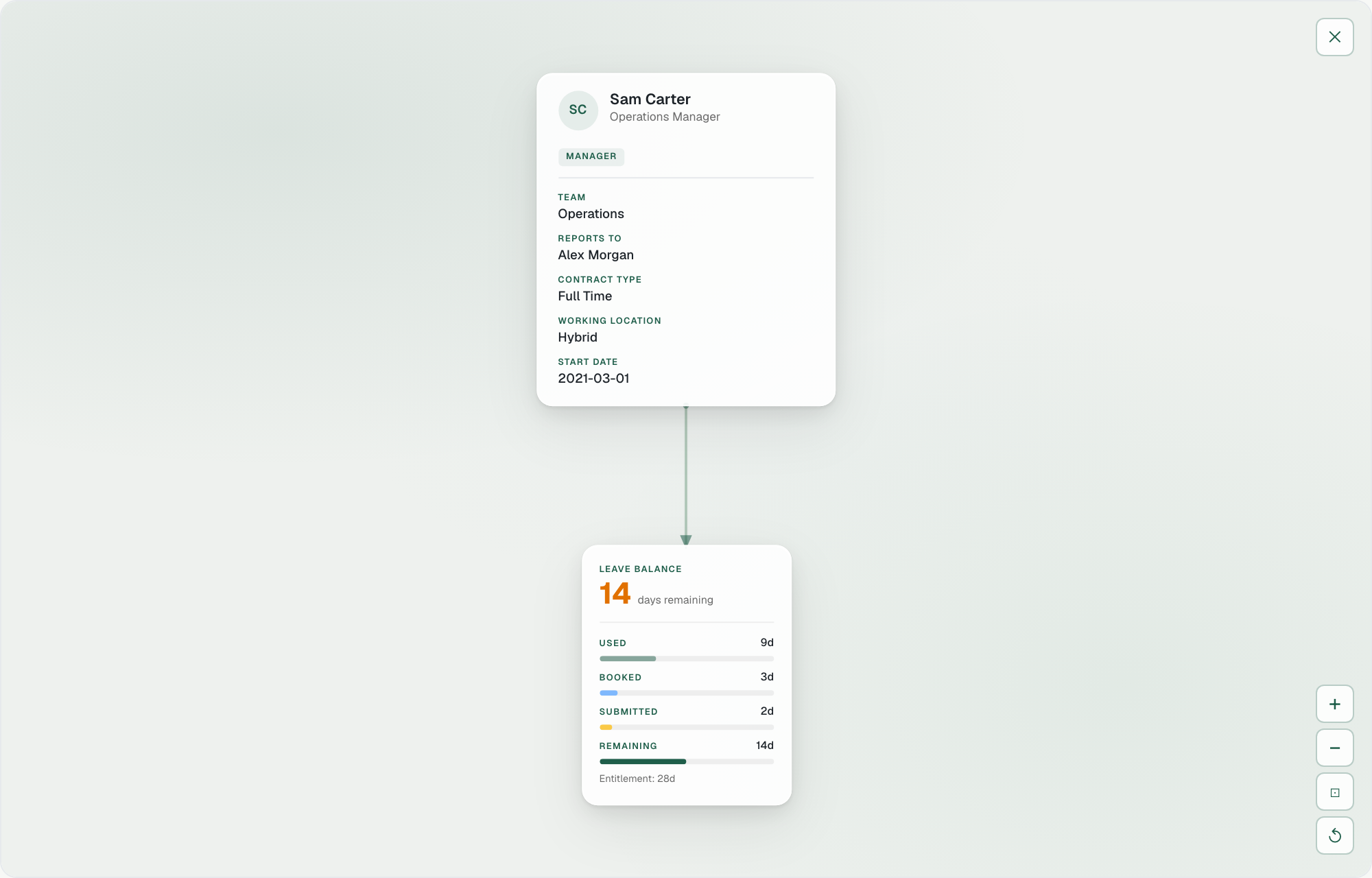
Cards appear on the canvas showing:
- Employee profiles
- Team groupings
- Leave balances and bookings
- Absence summaries
- Risk indicators
- Document previews
- Action confirmations
Navigating the canvas
Click and drag to pan. Use the scroll wheel or pinch gesture to zoom. Drag individual cards to reposition them.
Edges
Connecting lines between cards show relationships such as manager to direct report or employee to team.
The canvas updates automatically as you ask new questions. Follow-up questions about the same person add their cards next to the ones already there. Ask about someone else and the canvas starts fresh, so it never fills up with people you have finished with. To clear it yourself at any time, use the Clear canvas button.