Importing People from a File
If your people are already in a spreadsheet or another HR system, import them instead of typing each one in. Terio reads CSV and Excel files up to 10 MB (if an Excel file has several sheets it uses the first and tells you).
Choose Import from CSV and upload your file.
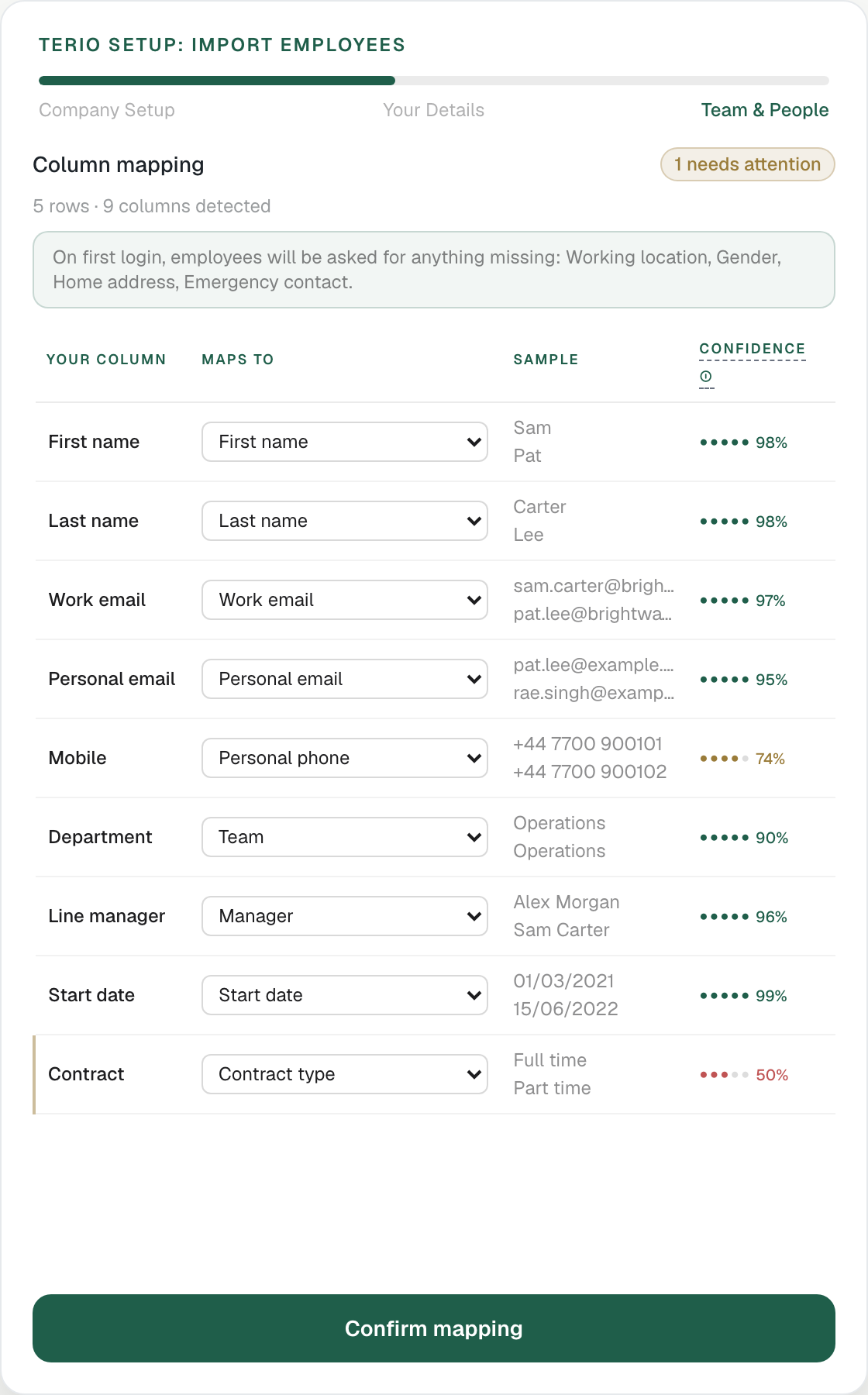
Terio suggests which of its fields each of your columns holds. A colour-coded confidence shows how sure it is: green is likely right, amber needs a look, and red means no match, so choose the right field from the dropdown (or ignore the column).
Check the Sample column. It shows the first values from your own file for each column, so you can see at a glance whether a mapping is right.
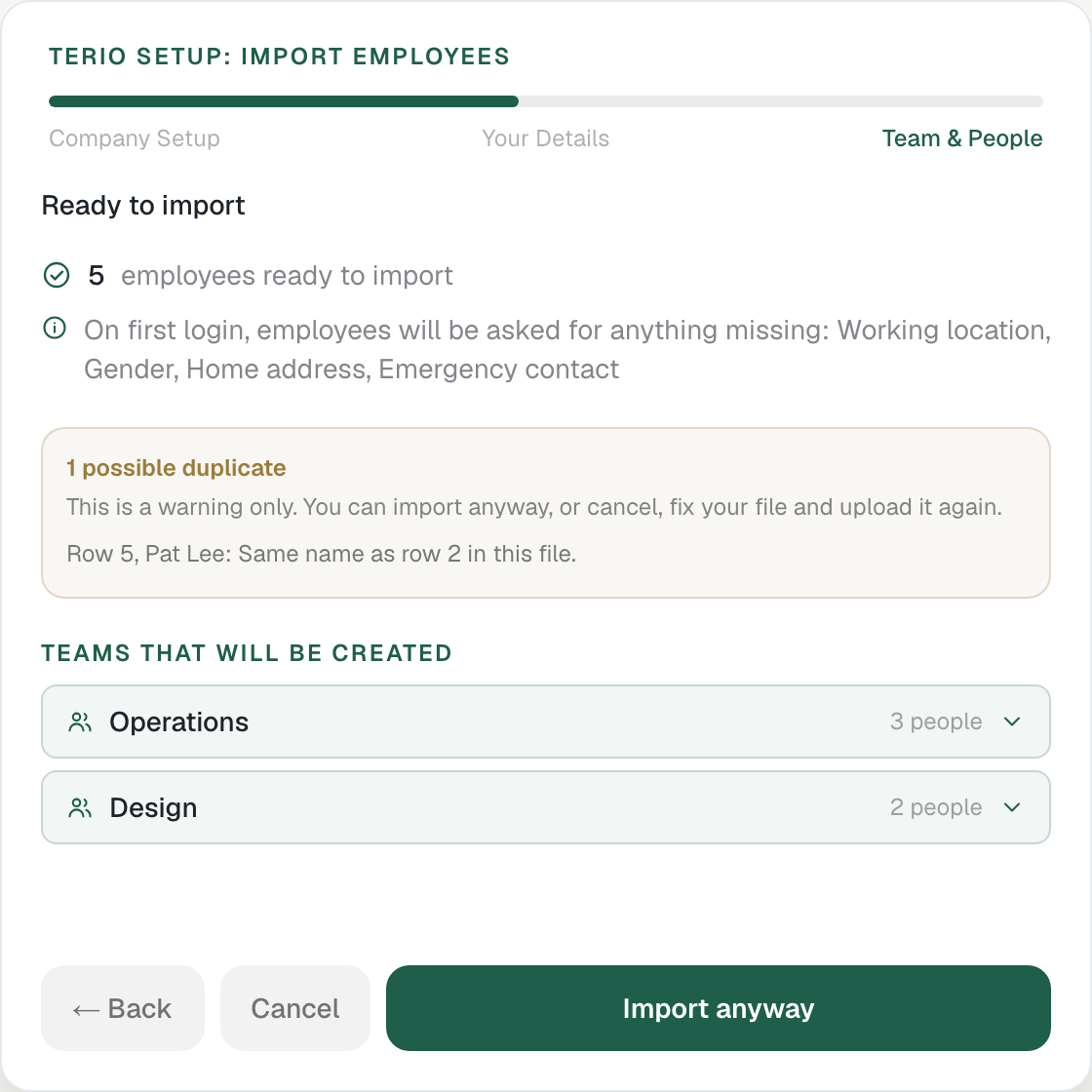
Confirm the mapping. You see a preview of who will be imported, which teams will be created, and anything that will be skipped and why.
Import. A progress screen shows teams, employees, records and managers being created, then you review the structure.
What the file needs
- A name: a first name, a last name, or both.
- An email address: a work email, a personal email, or both. Some people have no company email, so a personal address is accepted and the invitation goes there.
- A team column and a manager column.
Everything else is optional. Phone numbers keep their international prefix (+44 stays +44), and an invalid personal email is left out rather than stopping the import.
Possible duplicates
Before importing, Terio flags anyone who looks like a duplicate: the same name or email as someone already in the company, or repeated within the file. For now this is a warning only. You can import anyway, or cancel, fix your file and upload it again. A row that uses the email of someone already here updates their record rather than adding a second one.
What people are asked for when they first sign in
Anything not in your file is collected from the person themselves: working location, contract type, start date, preferred name, personal phone, personal email, home address and an emergency contact (name, relationship and a UK phone number). Gender and a business phone are asked but can be skipped. The import screen lists exactly which of these your file leaves out.