Uploading Policies
Go to the Policies page using the navigation.
Click Upload Policy.
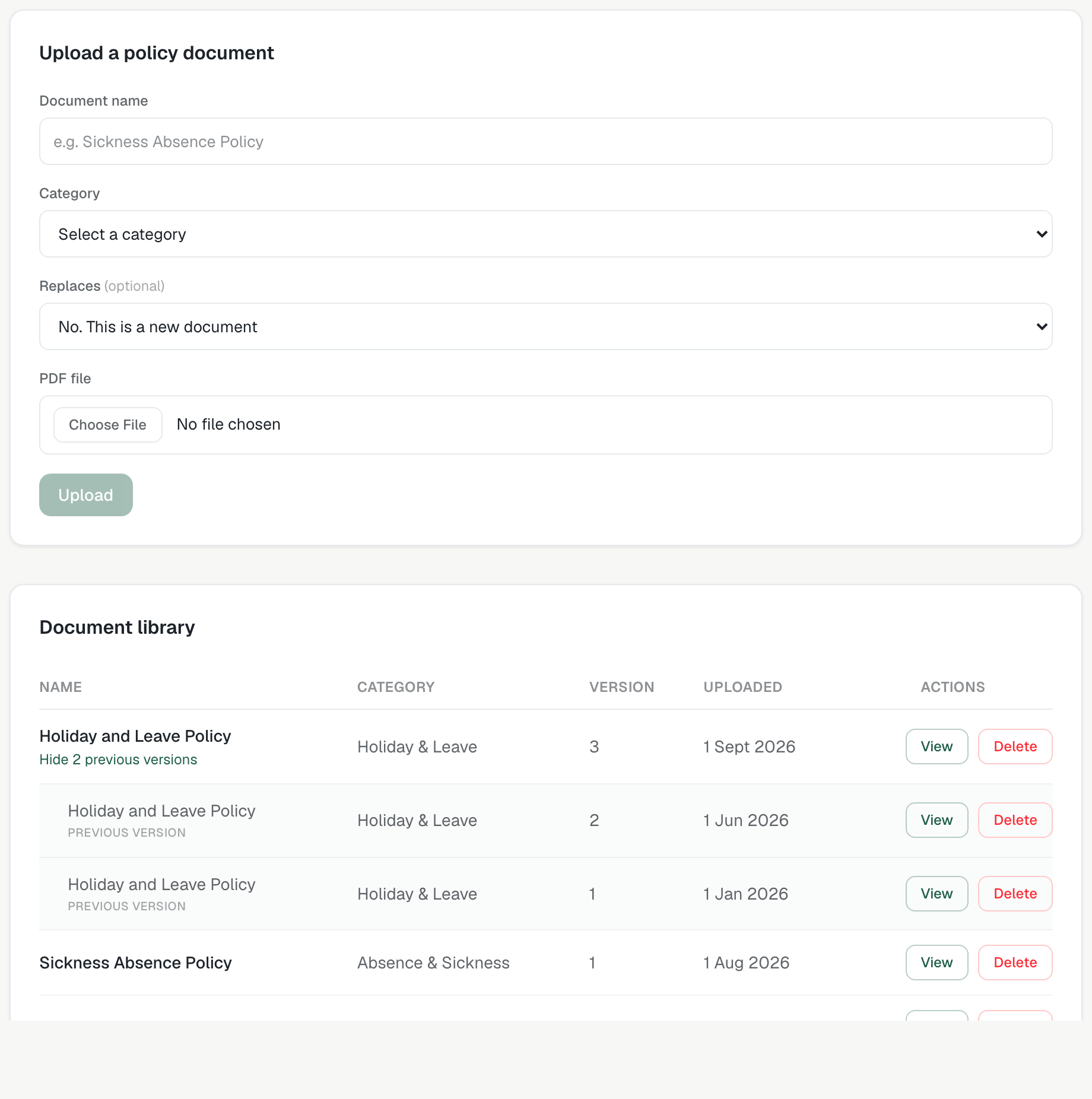
Select a PDF file and give it a name and choose a category. The category is required, and the Upload button stays off until you have picked one (Absence and Sickness, Disciplinary and Grievance, Harassment, Holiday and Leave, Flexible Working, Probation, Redundancy, Equal Opportunities, Data Protection or Other).
Terio reads the document and prepares it for searching in the background. Only PDF files are accepted.
The policy is available in chat within a few seconds, and appears in the library straight away.
Replacing a policy with a newer version
To replace a policy, choose it in the Replaces list when you upload. The name and category are filled in for you, the new document carries on the version number (version 2, then 3), and the old one becomes the previous version. In the library each policy appears once, with its older versions tucked underneath: click "Show previous versions" to see them.
If a document was saved but Terio could not read it (the AI was unavailable, say), the library marks it "Not processed" and shows a Process button. Click it to try again. Terio cannot use a policy in answers until it has been processed. A scanned PDF with no text in it cannot be processed: save a text-based PDF instead.
To view a policy, click View on the Policies page. It opens from Terio's own address. To delete a version, click Delete and confirm. If you delete the newest version, the one before it becomes the current version again, so the policy never drops out of Terio's answers.