The Chat Interface
The main Terio interface is a conversation window. Type your question or request and Terio responds, either by looking up data from your HR records or using AI to give you guidance.
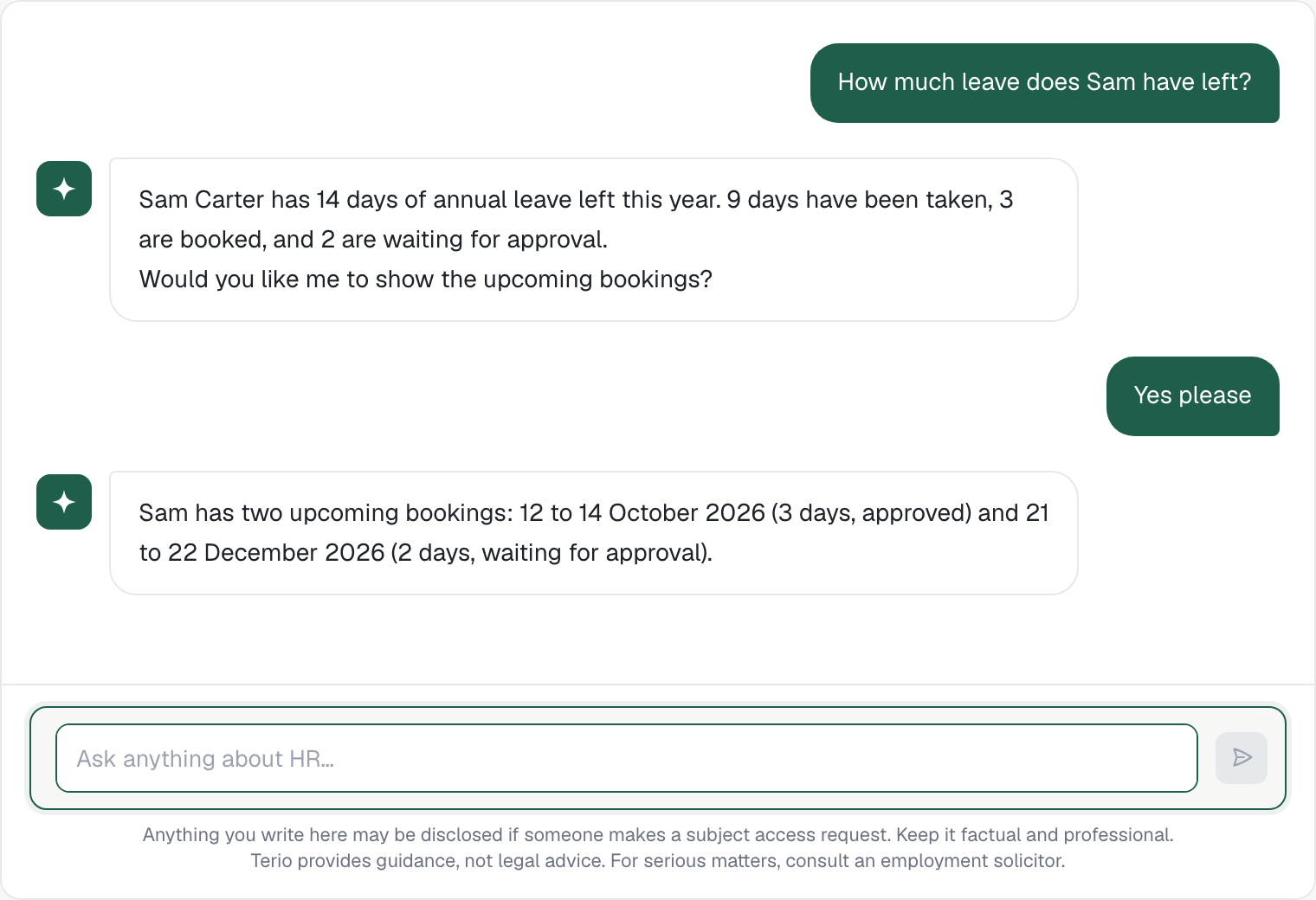
- Sending a message: type in the box at the bottom and press Enter or click Send.
- Voice input: click the microphone icon to speak your question instead of typing.
- Yes and No buttons. When Terio asks for confirmation before taking an action (booking leave, issuing a warning, updating a salary) it shows Yes and No buttons. Click Yes to proceed or No to cancel.
- Quick-pick buttons: for some questions Terio shows suggested options as buttons you can tap rather than type.
- Explanations: where a process or term may be new to you (a return-to-work conversation, a fit note, reasonable adjustments), Terio offers to walk you through it. You can also ask at any time, for example "What is a return-to-work conversation?"
- Chat history: all your conversations are saved in the sidebar on the left. Click any previous conversation to open it. Use Cmd+K (Mac) or Ctrl+K (Windows) to search your chat history. Deleting a conversation hides it from you, but your company keeps it for 2 years from the last message.
- New conversation: click the New Chat button in the sidebar to start a fresh conversation.
- Text to speech: Terio can read responses aloud. Click the speaker icon on any response to hear it.
- Export: click the export icon on any conversation to download it as a text file.